

Learn to Browse and Access
AURIN Data catalogue
The AURIN Data Catalogue allows you to find and download AURIN datasets, manage access, and view agreements.
This User Guide will help you learn to browse data and manage your access.
Browse Datasets
Search Data
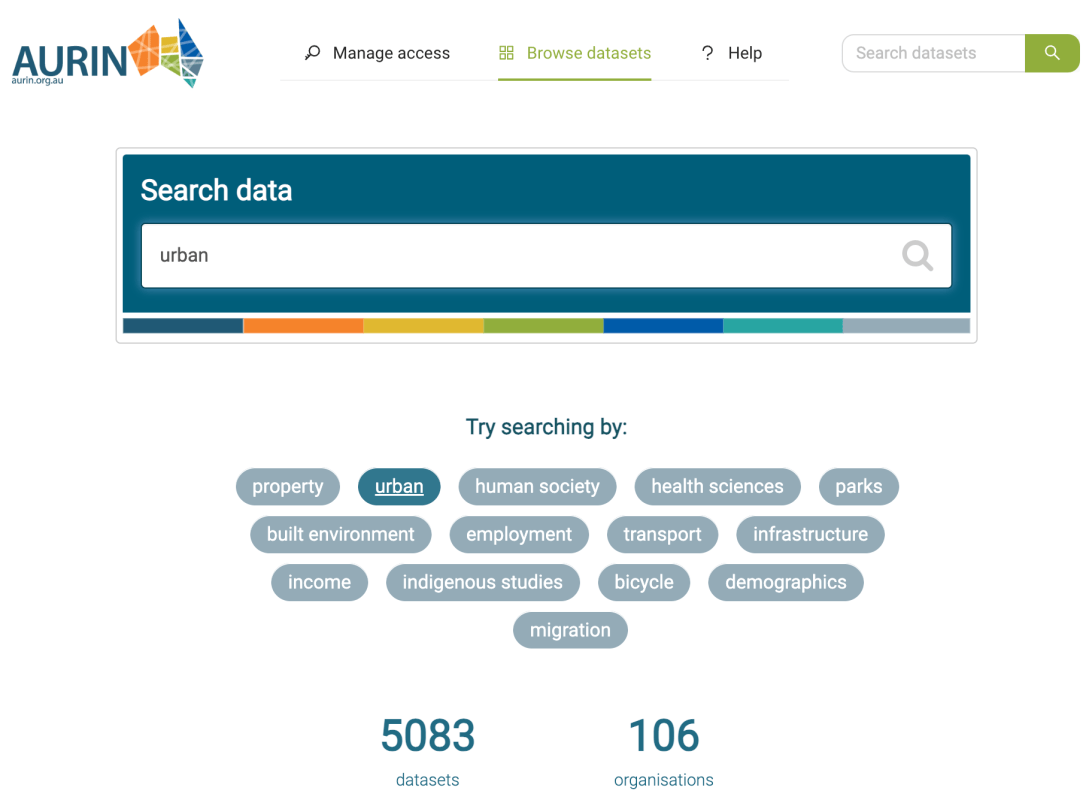
The Data Catalogue can be searched using keywords relating to your study theme.
For example, to find urban datasets, you can type a specific keyword into the free text field like ‘urban’ or click ‘urban’ in the list of commonly-used themes and browse from there.
Narrowing by Geographic Area
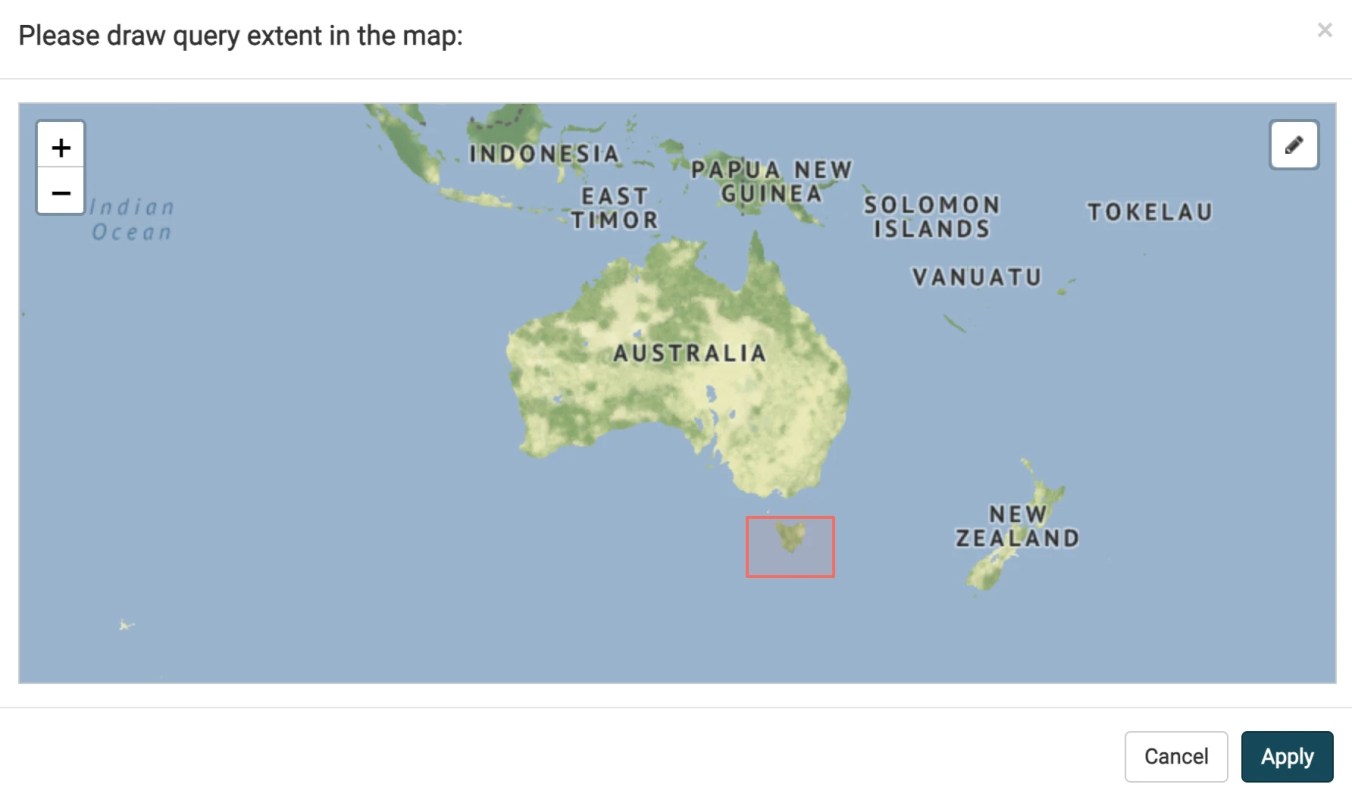
The ‘Filter by location’ function can narrow findings by geographic area. For example, to find urban data in Tasmania, by clicking the pencil icon on the map insert, drawing a box around Tasmania, and then clicking ‘Apply’, the search results will be limited to datasets with coverage in that area.

Download a Dataset
You can download a dataset in two ways. The first way is simply clicking the ‘Download this Dataset’ button, which is located at the very top of each dataset. The second way is through ‘API Access’ (further information below).
Please note you can download AURIN’s data directly by clicking the ‘Download this Dataset’ button on the Data Catalogue page. In this case, API Access is not needed.
We use the ‘AURIN – National Education Facilities – Universities (Point) 2018’ dataset as an example. Click the ‘Download this Dataset’ button, and choose a data format that suits your needs. Options are CSV, GML, GeoJSON, and KML. Finally, click ‘Download’.
For first-time users, please note you will be connected automatically to the login page, after clicking the ‘Download this Dataset’ button. Once fill in the login information, you can download the dataset. Please read the following section, ‘Manage Access’ to learn more about logging in.

Manage Access
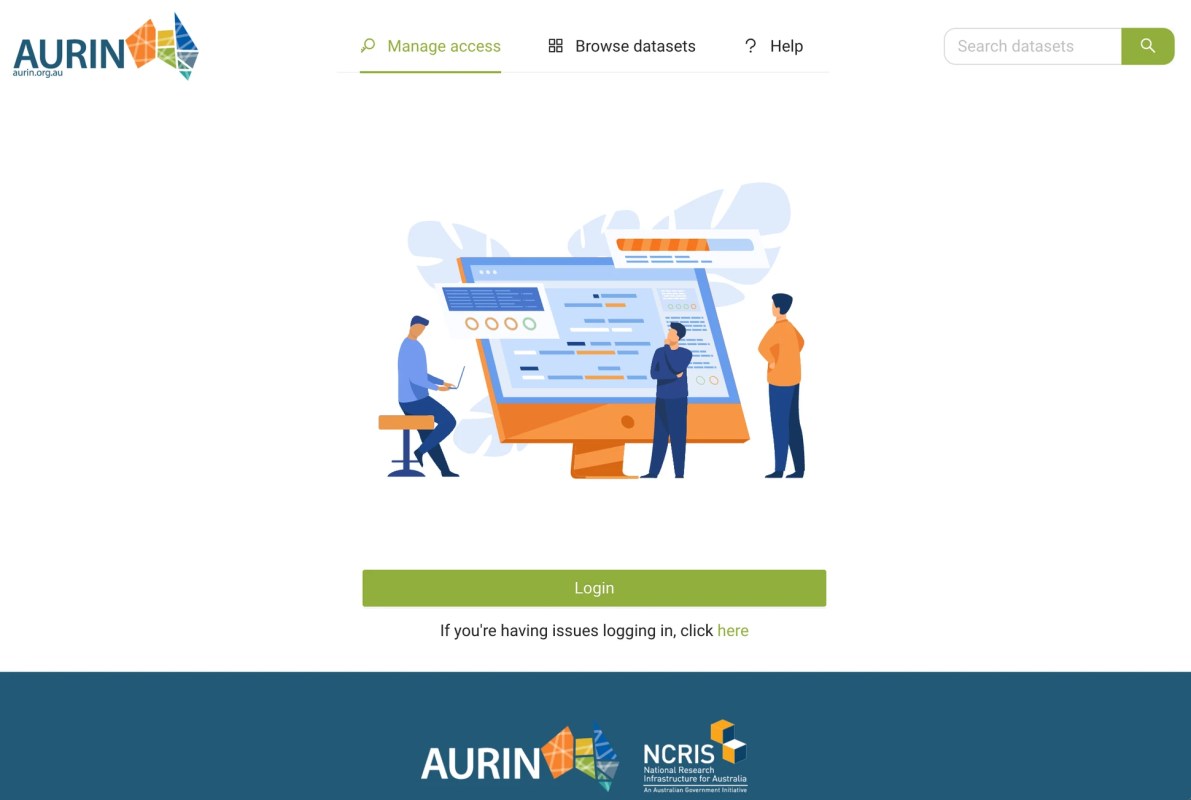
Certain functions will re-direct you to this Login page, such as download a dataset, access My Account, or view the agreement. Click the Login button to visit the Australian Access Federation (AAF) Central page. The AAF is Australia’s identity federation. You can type in your organisation’s name in the search bar, for instance, ‘Queensland University’. If you are from an AAF-listed organisation, you can gain access by navigating to your institution and entering your institution’s login details. If it is your first time logging in, you will be prompted to accept the AURIN Terms of Use.
If you are not from an AAF-listed organisation (users with a non-edu email address), you will need to apply for an AAF Virtual Home Account by clicking here. Once your AAF Virtual Home account is approved, you will then log in using your AAF Virtual Home account through clicking on the first option in the list, ‘AAF Virtual Home’, and then entering your access credentials.
My Account
Once you agree to the Terms of Use, please come to the ‘My Account’ section under ‘Manage access’. If you are from the academic sector and plan to use the Data Catalogue for academic or research purposes, please tick the box and submit to gain access to additional licence agreements and datasets that are limited to the academic sector.

My Agreements
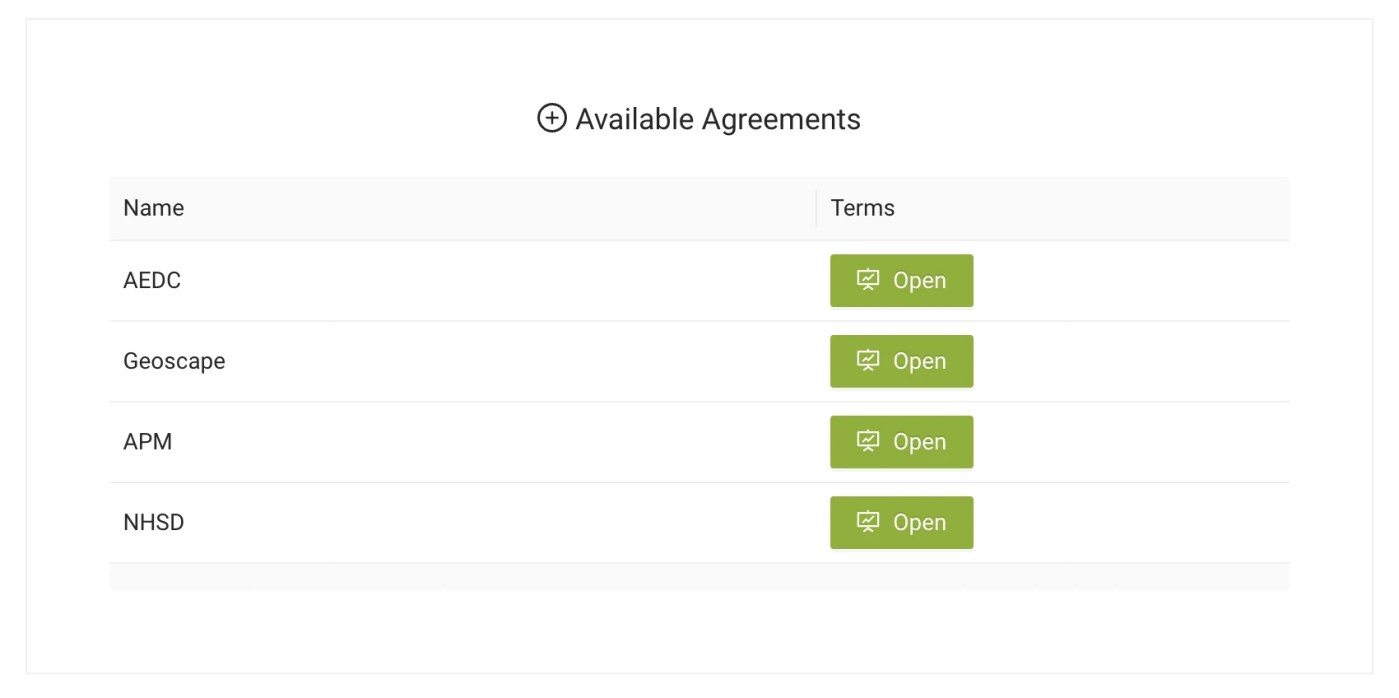
All licence agreements for data you are eligible to access in this tab will appear in the Available Agreements section. Upon accepting the AURIN Services Terms of Use at first login, the relevant agreement automatically gets added to the Accepted Agreements section, providing access to all data with standard open licences in the AURIN Catalogue to your account.
Opening an available agreement, viewing each page and clicking ‘accept’ will move that agreement to the ‘Accepted Agreements’ section. The associated data will then be available in your Data Provider account.
Please read carefully and follow all the rules and instructions.
Please note it may take a few minutes for the data to become accessible after you accept the agreements for the first time. Some agreements only become available after declaring academic status.
There are restricted datasets only available upon successful applications, such as APM data, Geoscape data, NHSD data. Click here to apply for access to the restricted datasets.
API Access
API access credentials are required only when retrieving data through external software or programs such as QGIS, ArcGIS Pro, Python, or R. You can find relevant tutorials for these software and programming languages here.
To establish your API credentials, navigate to ‘Access Dashboard’ > ‘Manage Access’ > ‘API Access’. If this is your first time, click Generate New Credential to create your ‘Username’ and ‘Password’. If you’ve already generated credentials, click the ‘copy’ icon to copy your username and password and paste them into the required software. To reveal your password, use the ‘eye’ icon.
Please note the API access password will expire in 90 days for security reasons. You can always get a new password by visiting the API Access page.


